So, you want to host your own backend services. You look at AWS bills and your wallet starts crying. You look at GCP and feel like you need a finance degree just to understand their pricing calculator. But then you remember: that old family computer sitting in your closet collecting dust.
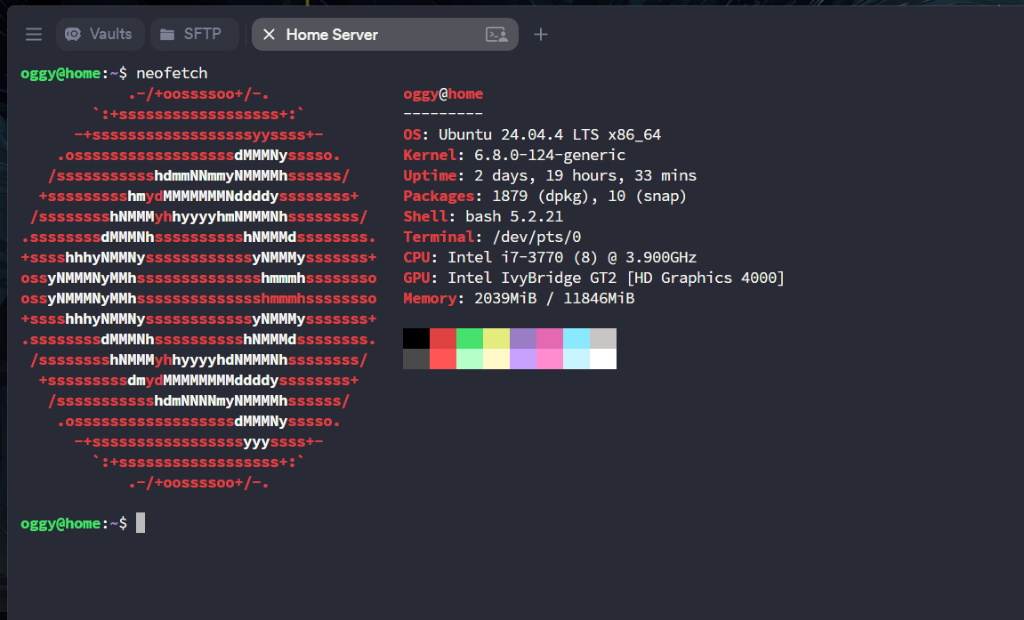
That is how I ended up building my ultimate home lab: a full self-hosted production stack running on an ancient Intel Core i7 3rd Gen processor with 12GB of RAM. It is dusty, it is loud, it is older than some of the apps on my phone, but it is running 24/7 like an absolute champ, fr fr.
From hosting photo backups with Immich to routing live Model Context Protocol (MCP) servers for MeshPilot, this closet toaster is the main character of my development workflow.
Setting Up the OS: Ubuntu Server
Before deploying containers, I had to install the operating system. I went with Ubuntu Server as the core foundation. Since this hardware is technically consumer-grade, I had to tweak some configurations right off the bat, like preventing it from auto-sleeping and handling other small settings to ensure it runs 24/7 uninterrupted. No fancy server racks, just systemd configurations keeping the toaster alive.
Escaping ISP Cash Grabs with Cloudflare Tunnels
First, let's talk about the internet connection. To host services that the public internet can access (like API backends), you need a static IP. I called my ISP provider, and they told me they only offer static IPs if I upgrade to their premium 1Gbps fiber plan. That plan costs too much money, it is a literal cash grab, and I was not about to pay double my rent just to host a hobby server.
My solution? A Cloudflare Tunnel.
By running cloudflared locally on my server, it establishes a secure, outbound connection directly to Cloudflare's nearest edge server. This exposes my services to the web securely without me needing:
- A public static IP
- Any open ports on my home router (which is a massive security win)
- To pay my ISP a single extra cent
Now, when users hit my API or access MeshPilot, the traffic routing goes through Cloudflare directly to my closet toaster. No cap, it is like magic.
Locking Down Administration with Tailscale
Cloudflare Tunnels are great for public apps, but I definitely do not want my docker management panel or root system console exposed to the public.
To solve this, I added the server to a private mesh network using Tailscale. Tailscale uses WireGuard to create a secure, point-to-point mesh network between all my personal devices:
- Securing Webmin: My system dashboard Webmin is only accessible if my device is connected to my private Tailscale network.
- Portainer Access: I can manage my Docker stacks via Portainer securely from my laptop, even if I am sitting at a coffee shop miles away from home.
- Zero Configuration: I did not have to deal with complex firewall rules or custom VPN configurations. It just works, fr fr.
Webmin: The Low-Level System View
To manage system-level tasks without breaking my brain in the terminal, I use Webmin. It gives me a clean web interface to monitor hardware stats, manage user accounts, check disk storage, and review system logs.
Here is the Webmin dashboard displaying the system status of my home server:
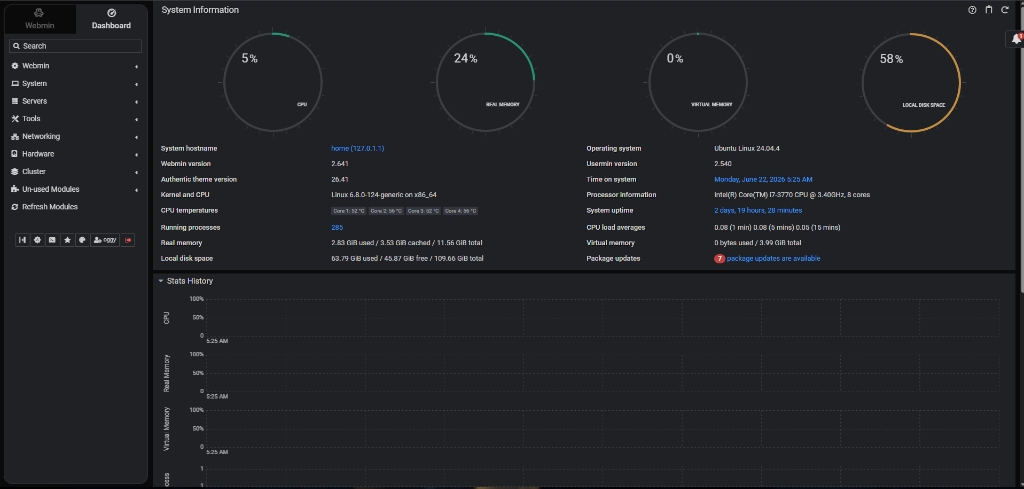
From this screen, I can see that the server runs Ubuntu Linux 24.04.4, utilizing an Intel Core i7-3770 CPU. Webmin makes it easy to track CPU and memory usage graphs, and alerts me if my disk space is getting tight.
Docker Stack Management via Portainer
Since almost all of my hosted services run inside Docker containers, managing them individually via CLI would be a total pain. That is where Portainer comes in. It gives me a visual dashboard to deploy compose files, monitor container status, and inspect log outputs.
Here is the Portainer environment dashboard managing the running containers:
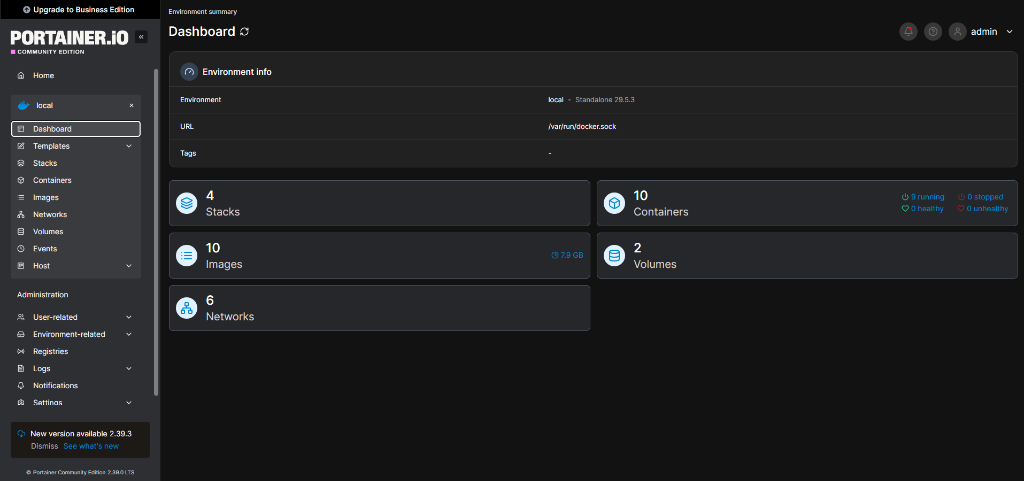
This Portainer interface shows my 4 stacks, 10 running containers, and volumes. If a container starts acting up, I can restart it or check the logs with a single click.
Terminal Tools: btop, eza, and ncdu
While Webmin and Portainer provide great web dashboards, sometimes I have to ssh into the server. When I do, I use modern terminal utilities to manage files and monitor resources:
1. btop (Terminal System Monitor)
I replaced the standard top or htop commands with btop. It is an incredibly detailed and beautiful terminal system monitor that displays real-time CPU core usage, memory stats, storage read/write speeds, network traffic, and process lists in a visual terminal UI.
Here is btop running via SSH, showing the system metrics:
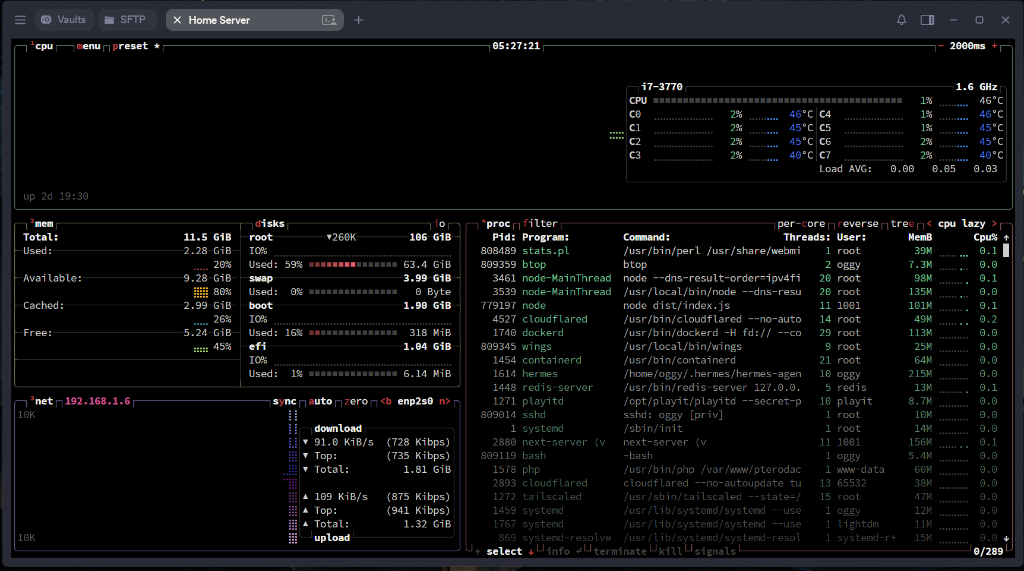
As you can see, btop displays the CPU core loads, memory allocation, and the running processes (like cloudflared, tailscaled, webmin, and my backend nodes).
2. eza (Modern File Lister)
I use eza, a modern, color-coded replacement for the classic ls command. It gives me clear directory trees, file metadata, and colorized outputs that make navigating the homelab file system much easier.
3. ncdu (Disk Usage Analyzer)
With multiple container logs and photo backups growing daily, disk space runs out quickly on a 120GB SSD. I use ncdu, a terminal-based disk usage analyzer, to quickly scan my directories and find exactly which files or log caches are eating up my space.
The Self-Hosted Software Stack
This server is running a massive list of containerized services:
1. Immich (Photo & Video Backup)
I got tired of Google Photos asking me to upgrade my cloud storage subscription every two weeks. Immich is a self-hosted replacement that runs on my server. It automatically backs up photos and videos from my phone whenever I connect to my home network. The UI is super smooth and it handles thousands of files without breaking a sweat.
2. Pterodactyl (Game Server Control Panel)
Yes, of course we host game servers on this. Pterodactyl is an open-source game server management panel that runs game servers inside Docker containers. From Minecraft servers for my friends to custom testing environments, Pterodactyl lets me spin up, monitor, and scale servers on the fly without bogging down the main OS.
3. MeshPilot Backend & MCP Server
One of the most important workloads on this server is hosting the backend and Model Context Protocol (MCP) servers for MeshPilot. Because the server runs on a residential IP, it handles API requests and model context syncing smoothly, escaping datacenter blocking and saving us hundreds of dollars in cloud infrastructure costs.
4. Melofy (Music Streaming Server)
My high-performance music streaming website, Melofy, is also hosted right here on this server! It runs seamlessly alongside my other Docker stacks, handling audio metadata and streaming connections. You are welcome to check out my detailed Melofy blog post to read all about how I built it.
5. MinIO (Private Cloud Storage)
To stay completely cloud-free, I run my own private S3-compatible object storage via MinIO. All of my custom database backups, media assets, static site builds, and raw files are stored inside this private bucket ecosystem. It gives me high-performance storage APIs without paying a cent to AWS.
6. n8n (Self-Hosted Workflow Automation)
For automation pipelines, I self-host n8n. It is a node-based workflow tool that acts as my private Zapier replacement. n8n automatically runs tasks like triggering weekly Docker volume backups, syncing files to MinIO, and firing status alerts to my chat rooms if a server event occurs.
7. Jellyfin (The Unused Media Server)
I self-host Jellyfin because I wanted to be that cool developer guy with a private streaming library. Honestly, Jellyfin is a fantastic project with great UI, but it has never come in handy for me. I barely use it, and it mostly just sits in my Docker list looking pretty. But hey, at least I can say I host my own Netflix.
8. Todo Flow (My Custom Task Ecosystem)
Look, I know what you are thinking: *'Oh wow, another developer built a todo app. Truly, a ground-breaking engineering marvel, get this man a Turing award.'* I know, I know. It is just a todo app, nothing special. But I built Todo Flow for myself to have a unified task manager. It exposes an MCP server for my AI agents (like the one writing this blog) and an interactive Discord bot for myself.
You are more than welcome to check the Todo Flow GitHub repository out!
9. Hermes Agent
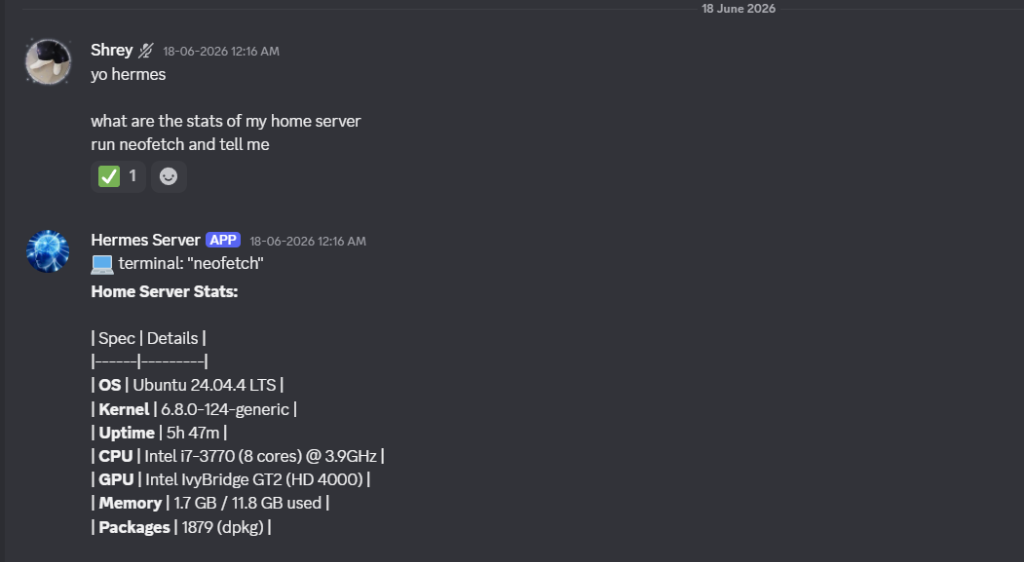
We are also running the Hermes agent on this machine. Hermes manages local task execution, automating cron jobs, system maintenance, and background tasks directly on the host machine. We can query its stats directly via a Discord bot integration.
Here is the Hermes Discord bot query returning my server specs:
10. Local LLM Hosting (The Failed Experiment)
I also tried running Ollama locally on this machine to host qwen 3 0.6b and serve it via Open WebUI. But the thing is, running LLM inference locally on this ancient CPU immediately shot it to 100% 😭 and was getting absolutely fried, so I quit that idea pretty fast. But hey, if you are GPU rich, you can surely host it yourself!
Hardware Limitations: 12GB RAM is a Lifestyle
Running all of this on a Core i7 3rd Gen CPU with 12GB of RAM means resource management is a lifestyle, not an afterthought. Here is how I keep the toaster from exploding:
- Docker Resource Limits: Every container has strict RAM caps configured in
docker-compose.yml. If Immich or n8n tries to consume more than 2GB during background processing, it gets capped.
- Aggressive Swap Configuration: Since DDR3 RAM is hard to find nowadays, I set up a fast SSD-backed swap partition to act as virtual memory fallback if the containers go wild.
- Storage Cleanup Routines: With only a 120GB SSD, space gets eaten up fast. I had to set up cron jobs to periodically clean up dangling Docker images and container logs to avoid system crashes from running out of disk space.
What We Learned
At the end of the day, self-hosting is less about building a perfect enterprise-grade network and more about high-key chaotic problem-solving. Running a server out of your closet forces you to understand networking at a system level, manage resources like they are gold, and appreciate tools that work without demanding a credit card. It is a wild ride, but it is infinitely more satisfying than clicking "Create Instance" on AWS and watching your savings melt away.
Go check out MeshPilot to see what this homelab is actually powering!